Getting Started
Onboarding into Opal
Opal Training
Opal Overview
StoryFirst Framework
Opal Calendar
Download Opal on Mobile
Navigation
Personal Panel
Notification Settings
Notifications and Subscriptions
Workspaces
Status Icons
Opal Glossary
Web Browsers and Security
Edit Your Profile
Edit Your Settings
Help & Support
Opal Features & Functionality
Opal API
Campaign Planner 101
Best Practices
Save time with Opal AI
Inside Look: How Opal Marketing uses Boards
Content Planning
Campaign Planning
Organize Briefs
Project Management
Executive Communications
Communications
Internal Communications
Paid Media
Social Media
Managing your Email content
Parking Lot for Content
Desktop App
Universal Features
Keyboard Shortcuts
Labels Sets and Labels
Filter, Search, and Sort
Collaboration
Notes
Track Campaign Budgets
Flighting
Invite Users
Stamp Templates
Manage sharing and access in Opal
PowerPoint Export
User Groups
Instant Log-In
Opal Insights
Work with Campaigns
Define Campaign Details
Moment Overview
Create & Manage a Moment
Customize Moments in Week View
Moment View Layouts
Moment Options
Move a Moment
Workflow on Moments
Manage Campaign Content
Content Overview
Channels & Content Types
Create & Manage Content
Content Composer Tabs
Content Options
Content Placements
Content Localizations
Previewing Content
Share Content
Publish Content
Export Content Metadata to CSV
Email Modules
Text Editor
Longform Content
URL Preview
Website Content
Channels & Content Types
Custom Content Channel
Digital Ad
Email Preview
Flickr
Radio
Snapchat
TikTok
Television
VK
YouTube
Embed Content
Opal Docs
Manage Assets
Assets Overview
View the Asset Library & Assets
Upload Assets
Edit Asset Settings
Export Asset Metadata to CSV
Use Tasks & Approvals
Workflow Overview
Use Workflows
Configure Tasks and Approvals
Manage Assignments
Approve and Decline Content
Share the Work
Presentations Overview
Create a Presentation
View a Presentation
Edit a Presentation and Slides
Share a Presentation
Canvas & Title Slides
Integrations
Chrome Browser Extension
Dash Social
Facebook Ads Manager
Firstup
Jira
Khoros
Khoros Admin Guide
Slack
Sprinklr
Sprinklr Admin Guide
Workfront
Wrike
Frame.io
Content Delivery Integrations
Asana
Sprout Social
Formstack
On-Demand Webinars
Opal Essentials
Opal Admin Training
Quarterly Product Showcase: Project Management
Quarterly Product Showcase: Boards & Browser Extension
Opal Essentials - Limited User
Opal Quarterly Showcase w/Lauren Scott of Zillow
Opal Quarterly Showcase w/Angelic Crippen of Intermix
Opal Quarterly Showcase w/Kelsey Dahlager of Target
Opal Quarterly Showcase w/Leah Randall of Minted
Admin
Naming Conventions
Set Up Your Opal for Success
Manage General Options
Manage Label Sets & Labels
Manage Channels & Accounts
Manage Workspace Workflow
User Directory
Manage Users
Role Capabilities
Viewer User
Limited User
Single Sign-On (SSO)
Customer Success
Types
Custom Fields in Plans
See What's New!
Changelog
Discover Boards, Your New Home in Opal
Browser Extension
Simplified & Streamlined Navigation
Nested Label Sets
Stamps
Opal Text Editor
Moment Flighting
Annotations
Your Marketing Calendar, Now on Mobile
Orchestrate & Visualize Your Website in Opal
Email Collaboration Made Easy
Do More In Your Favorite Views
Polished for a Purpose
Workflow In Opal
Workflow Improvements
Content Start and End Dates
Export to PDF
Content Change Tracking
Export Your Opal Data to CSV
Do More with Assets
Enhancing Collaboration with Access
Content Data Export
Added Accountability for Approvers
Facebook Canvas Ads
Plan & Manage Budgets
View & Schedule Timing of Content
New Moment Actions
September Campaign Planner Beta Update
Flexible Content Start Dates
Policies & Guidelines
Plans
Boards
- All Categories
-
- Content Mode
Content Mode

Content Mode
Content Mode lets you see each individual piece of content scheduled on your calendar, instead of only viewing the moments they belong to. Use Content Mode when you want to understand exactly which posts, print pieces, or other content items are going live during a specific day, week, or month. This represents the most granular way to understand exactly how your brand is going to market.
Why use Content Mode?
By default, the calendar may show moments, which can include multiple pieces of content grouped together. Content Mode breaks those moments into the individual content items that make them up. This makes it easier to:
- See each piece of content scheduled for the week
- See content that belongs to the same moment but has different start dates
How to Check Content Mode
- Open the calendar in Week View
- In the top-right corner of the calendar, select Content.
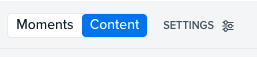
The calendar will update to show individual pieces of content instead of grouped moments. When Content Mode is enabled, each content item appears as its own card on the calendar. Each card can include details such as:
- Content title
- Channel
- Scheduled time
- Associated account or brand
- Associated moment
For example, a single moment may include multiple Instagram posts, a Facebook post, TikTok content, or print content. In Content Mode, each of those items appears separately so you can review the full plan in more detail.
How to view content duration
Content Mode can also show how long content or initiatives will be active if it has been set. This is helpful for visualizing the flighting of content.
To view duration details, open the Settings menu from the calendar view.
Toggle on Show under In-Market Duration.
Note: Images will not be displayed when viewing content with in-market duration
Sorting Content
You can sort content on the calendar to review your plan in different ways.
Available sorting options may include:
- Channel
- Account
- Region
- Time of Day
- Team assignment
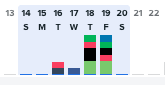
After sorting content, you can hover over the week in the timeline section to see a breakdown of content by your selected criteria”.
Add content from Content Mode
You can also add content while viewing the calendar in Content Mode.
- Open the calendar in Content Mode.
- Choose the channel for the new content.
- Select the moment you want to associate the content with.
- Create the content item.