Getting Started
Onboarding into Opal
Opal Training
Opal Overview
StoryFirst Framework
Opal Calendar
Download Opal on Mobile
Navigation
Personal Panel
Notification Settings
Notifications and Subscriptions
Workspaces
Status Icons
Opal Glossary
Web Browsers and Security
Edit Your Profile
Edit Your Settings
Help & Support
Opal Features & Functionality
Opal API
Campaign Planner 101
Best Practices
Save time with Opal AI
Inside Look: How Opal Marketing uses Boards
Content Planning
Campaign Planning
Organize Briefs
Project Management
Executive Communications
Communications
Internal Communications
Paid Media
Social Media
Managing your Email content
Parking Lot for Content
Desktop App
Universal Features
Keyboard Shortcuts
Labels Sets and Labels
Filter, Search, and Sort
Collaboration
Notes
Track Campaign Budgets
Flighting
Invite Users
Stamp Templates
Manage sharing and access in Opal
PowerPoint Export
User Groups
Instant Log-In
Opal Insights
Work with Campaigns
Define Campaign Details
Moment Overview
Create & Manage a Moment
Customize Moments in Week View
Moment View Layouts
Moment Options
Move a Moment
Workflow on Moments
Manage Campaign Content
Content Overview
Channels & Content Types
Create & Manage Content
Content Composer Tabs
Content Options
Content Placements
Content Localizations
Previewing Content
Share Content
Publish Content
Export Content Metadata to CSV
Email Modules
Text Editor
Longform Content
URL Preview
Website Content
Channels & Content Types
Custom Content Channel
Digital Ad
Email Preview
Flickr
Radio
Snapchat
TikTok
Television
VK
YouTube
Embed Content
Opal Docs
Manage Assets
Assets Overview
View the Asset Library & Assets
Upload Assets
Edit Asset Settings
Export Asset Metadata to CSV
Use Tasks & Approvals
Workflow Overview
Use Workflows
Configure Tasks and Approvals
Manage Assignments
Approve and Decline Content
Share the Work
Presentations Overview
Create a Presentation
View a Presentation
Edit a Presentation and Slides
Share a Presentation
Canvas & Title Slides
Integrations
Chrome Browser Extension
Dash Social
Facebook Ads Manager
Firstup
Jira
Khoros
Khoros Admin Guide
Slack
Sprinklr
Sprinklr Admin Guide
Workfront
Wrike
Frame.io
Content Delivery Integrations
Asana
Sprout Social
Formstack
On-Demand Webinars
Opal Essentials
Opal Admin Training
Quarterly Product Showcase: Project Management
Quarterly Product Showcase: Boards & Browser Extension
Opal Essentials - Limited User
Opal Quarterly Showcase w/Lauren Scott of Zillow
Opal Quarterly Showcase w/Angelic Crippen of Intermix
Opal Quarterly Showcase w/Kelsey Dahlager of Target
Opal Quarterly Showcase w/Leah Randall of Minted
Admin
Naming Conventions
Set Up Your Opal for Success
Manage General Options
Manage Label Sets & Labels
Manage Channels & Accounts
Manage Workspace Workflow
User Directory
Manage Users
Role Capabilities
Viewer User
Limited User
Single Sign-On (SSO)
Customer Success
Types
Custom Fields in Plans
See What's New!
Changelog
Discover Boards, Your New Home in Opal
Browser Extension
Simplified & Streamlined Navigation
Nested Label Sets
Stamps
Opal Text Editor
Moment Flighting
Annotations
Your Marketing Calendar, Now on Mobile
Orchestrate & Visualize Your Website in Opal
Email Collaboration Made Easy
Do More In Your Favorite Views
Polished for a Purpose
Workflow In Opal
Workflow Improvements
Content Start and End Dates
Export to PDF
Content Change Tracking
Export Your Opal Data to CSV
Do More with Assets
Enhancing Collaboration with Access
Content Data Export
Added Accountability for Approvers
Facebook Canvas Ads
Plan & Manage Budgets
View & Schedule Timing of Content
New Moment Actions
September Campaign Planner Beta Update
Flexible Content Start Dates
Policies & Guidelines
Plans
Boards
- All Categories
- Plans
- Connections in Plans
Connections in Plans
 Updated
by Andy Hugelier
Updated
by Andy Hugelier
Connections in Plans
When teams work across multiple plans, it’s helpful to see how their work connects. Connections let you link a block directly to related work it supports, so you can view that context without leaving the original block. For example, you can connect a campaign block in a Marketing plan to the launch milestone it supports in a Product plan, giving both teams clearer visibility into how their work fits together.
This article covers how admins set up which types can connect, and how your team uses connections day to day.
Set up which types connect in the Admin
Connections work best when admins curate which types of work can connect to which other ones. That way, when someone on your team opens the Supports field on a block, they see the most relevant options first.
To configure connections:
- Click on Opal Options
- Hover over Configure Workspace
- Click on Types
- Open the type you want to configure
- Under Connections, use the Supports dropdown to select which other types this one can support
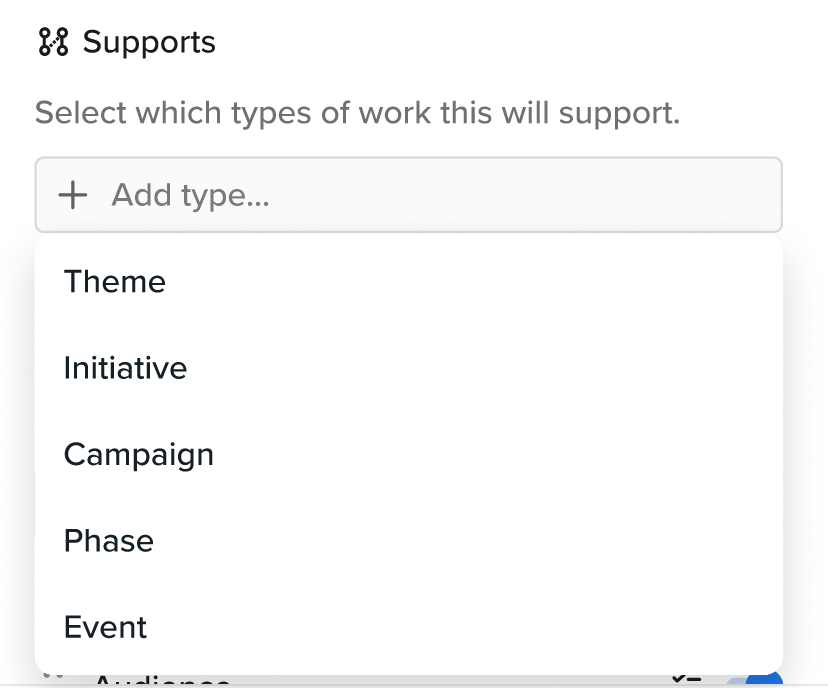
For example: if your Marketing type should support Product Launch and Brand Campaign types, you would select those here. Now anyone working on a Marketing block will see Product Launch and Brand Campaign plans suggested first when they add a connection.
You can also see all your type connections at a glance in the new Connections column on the type list.
Note: Moment-paired block types can't be selected as connection targets.
Connect your work to what it supports
Once your admin has things set up, you'll find a Supports field on the block details panel — between Description and Swimlane, marked with a small link icon.
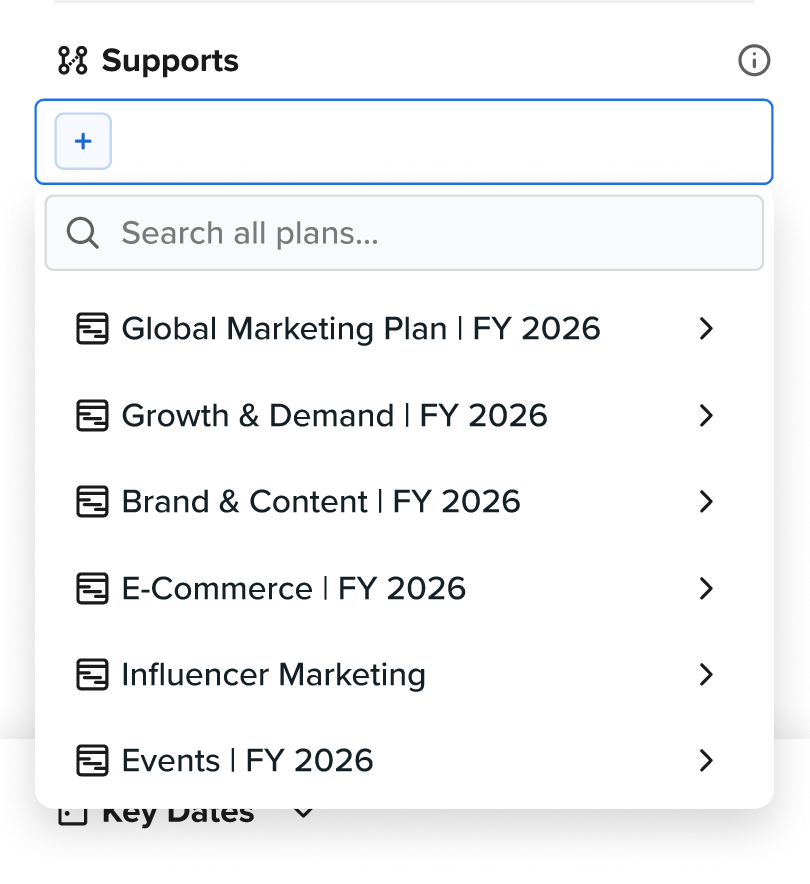
To make a connection:
- Open the block (either in the slide-out drawer or the full block view)
- Click the Supports field
- Select a plan, or a specific block within a plan, to connect to
The connection is created instantly. To remove one, just deselect it from the same dropdown.
What a connection actually does
A connection is more than a link or a tag. When you connect your block to another plan or block, your block becomes part of that parent's plan. Here's what to expect:
- Custom fields are shared. Your block inherits the custom fields the parent expects to see filled in, and values entered on the parent side show up on your block where applicable.
- Your timeline is connected to the parent. If you change start or end dates and it extends outside of the parent's timeline, you may see a warning in the date picker. If the parent's start date changes, it will move the connected block accordingly to match the offset from the start.
- Your block surfaces in the parent's plan. It becomes eligible to appear in the parent plan's smart swimlane, so the team that owns the parent can see your work without anyone adding it manually.
- The connection is visible from both sides. Your block lists the parent in its Supports field, and the parent's plan can surface your block in its swimlane.
- Removing the connection undoes all of this. Deselecting from the Supports field removes the inherited fields, releases the timeline constraint, and pulls your block from the parent's swimlane. Your block itself isn't deleted — only the connection.
Don't see the plan you're looking for?
By default, the Supports menu shows only plans and blocks whose type your admin has set up to connect with yours. To connect to something outside that list — say, a one-off cross-team project — toggle Show All at the top of the menu (the eye icon) to browse every plan and block in your workspace.
The note is placed at the end of the admin section so it doesn't interrupt the main setup flow but is still visible when an admin is configuring a type and wonders why a particular option isn't there. Let me know if you'd like it positioned differently or anything else adjusted.