Manage sharing and access in Opal

Opal gives you control over who can see and work on everything you create — from a single piece of content all the way up to an entire plan. This article explains how access works and how to share or restrict any item through its Sharing settings.
Prefer to watch? This walkthrough covers sharing an item, adding collaborators, and controlling inheritance from parent spaces.
The big idea
Every item in Opal has its own Sharing settings, which you open with the Share button. The main control there is Privacy, with two options:
- Entire Workspace — everyone in your workspace can find, view, and edit the item.
- Specific people & spaces — only the people, groups, and spaces you've shared it with can access it.
That's the core of it. Instead of juggling many permission levels, you choose who can access an item, and Opal determines what they can do based on their role in your workspace.
Spaces, moments, and content
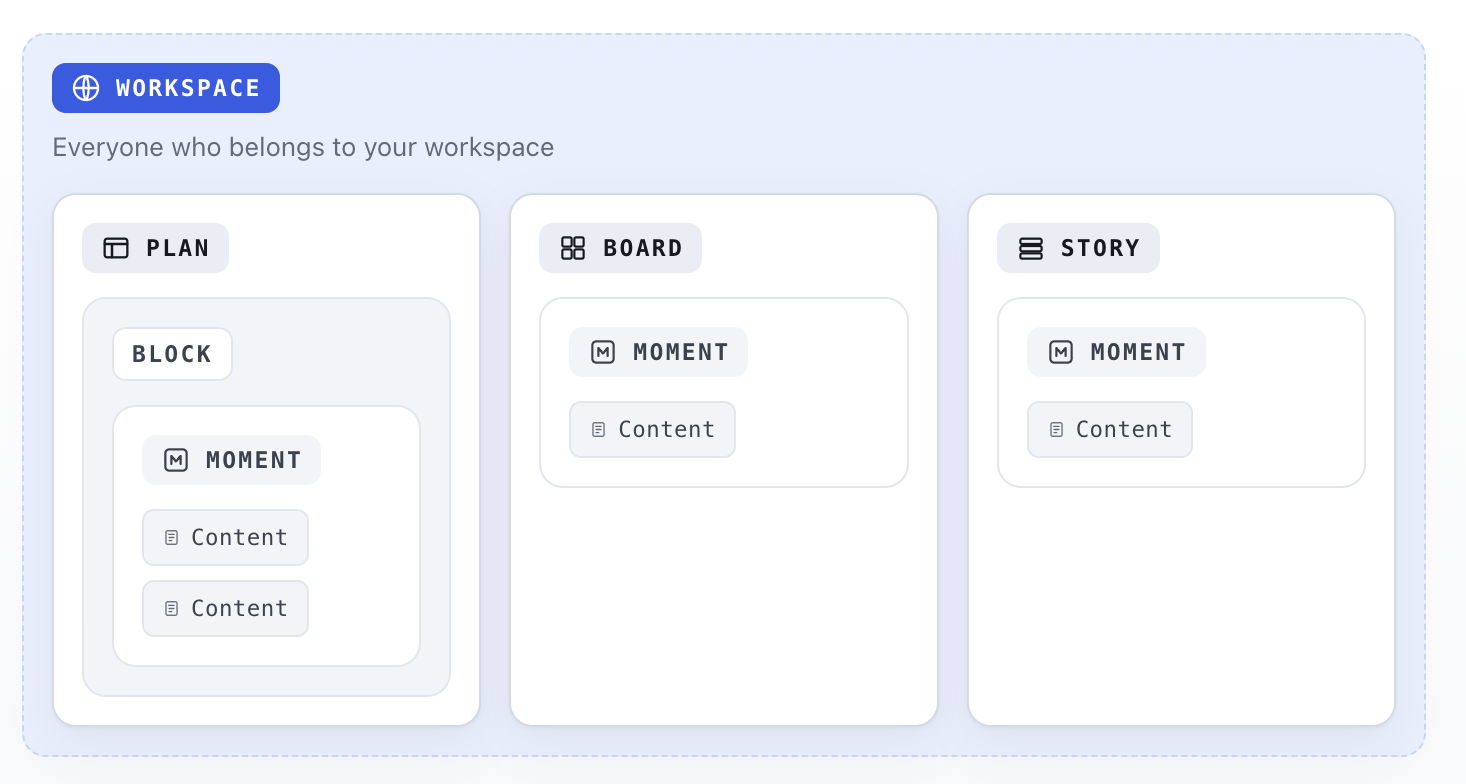
Opal organizes your work into a hierarchy. The containers you organize work into are called spaces:
Item | What it is |
Plan | A planning canvas made up of Blocks and Moments that represent initiatives, campaigns, phases, tactics, and more. |
Board | A space for organizing and managing the execution of Moments. |
Story | A campaign or narrative that groups related Moments. |
Moment | An individual message made up of Content that bring that message to a specific channel, account, or audience. |
These nest inside one another: a Plan contains Blocks; a Plan, Board, or Story contains Moments; each Moment contains Content. A single moment can even live in more than one space at once — for example, in a plan, board, and story.
Every space, moment, and piece of content has its own Privacy setting, and because they nest, access can flow from a space down to the things inside it. That's the next idea.
How access flows down
When someone can access a space, they can also access the things inside it that are set to inherit from it.
- Give a group access to a Plan, and they can see the Blocks, Moments, and Content within it.
- Set a Board to Entire Workspace, and the Moments on it become visible to everyone too.
- Give a teammate access to a Story, and they can see the Moments inside it.
This inheritance keeps sharing simple: you usually set access once, at the space level, and everything inside follows along. In fact, an item set to Specific people & spaces can still be visible to your whole workspace if one of its parent spaces is open to everyone and the item is inheriting from it — Opal will tell you when that's the case (see the callout in the share dialog).
Share an item
Click Share on any item to open its sharing dialog. (You'll see "Share Plan," "Share Moment," and so on depending on the item — the controls are the same.)
Choose a Privacy setting
At the top, set Privacy to either:
- Entire Workspace — everyone in the workspace can find, view, and edit the item, regardless of its parent spaces.
- Specific people & spaces — access is limited to the collaborators you list below.
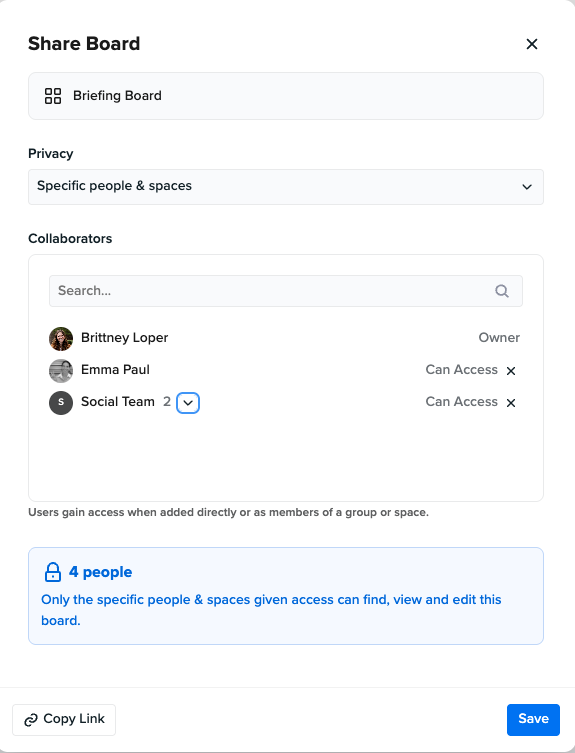
Add collaborators
When Privacy is set to Specific people & spaces, use the Collaborators list to control exactly who has access. Type into Add users or groups… to grant access to:
- Individual people — added directly, they show as Can Access. Remove someone with the ✕ next to their name.
- Groups — a group set up in your workspace; everyone in the group gets access, and it stays in sync as the group changes.
The item's creator always appears as Owner and can't be removed.
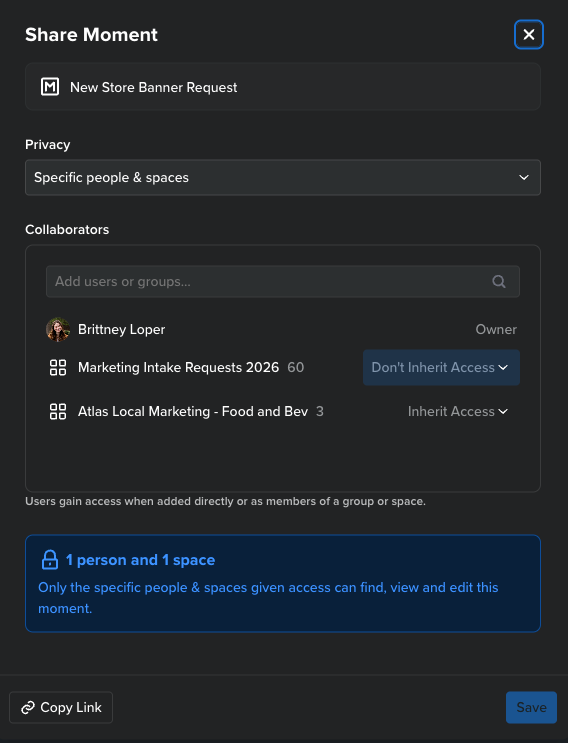
Control inheritance from parent spaces
The Collaborators list also shows the item's parent spaces (the plans, boards, or stories it belongs to). Each one has its own dropdown:
- Inherit Access — anyone who can see that parent space can also see this item.
- Don't Inherit Access — this item ignores that parent's access, so belonging to it no longer grants visibility.
Use Don't Inherit Access when you want an item to be more private than the space it lives in (see below).
Save or copy a link
Click Save to apply your changes. Use Copy Link to grab a direct link to the item — the people you send it to will still need access to open it.
Keep an item private inside a shared space
Sometimes you want an item to be more restricted than the space it lives in — for example, a Plan is open to the whole workspace, but one sensitive Moment inside it should stay limited.
- Open the item's Share dialog.
- Set Privacy to Specific people & spaces.
- In the Collaborators list, set the parent space to Don't Inherit Access.
- Add the specific people or groups who should have access.
Now the item stands on its own: it no longer follows that space's visibility, and only the collaborators you've added can see it.
What people can do once they have access
Having access means someone can find and open an item. What they can do with it — view only, or also edit — depends on their role in your workspace, not on the share dialog. Two people can both have access to the same item while one is able to edit it and the other can only view it. For a full breakdown of what each role can do in Opal, see Role Capabilities.
Stamps and access
Stamps are reusable templates for creating moments and content quickly. A stamp can also carry a sharing setup, and each stamp has a permission mode that decides what happens to a new item's access when the stamp is applied:
- None — the stamp doesn't change access; the new item just uses the normal defaults (inheriting from its plan, board, or story, otherwise the workspace).
- Additive — the stamp's sharing is added on top of the new item's normal access.
- Replace — the new item takes on the stamp's sharing setup entirely.
Stamps are created and managed by workspace administrators.
Who can change an item's sharing
An item's sharing settings can be changed by its owner — the person who created it — and by workspace administrators. Everyone else with access can view or edit the item according to their role, but can't change who else has access.
One important limit: being a workspace administrator doesn't grant access to private items. Admins can manage sharing only on items they can already see — they don't get automatic access to anything that hasn't been shared with them.
For workspace administrators
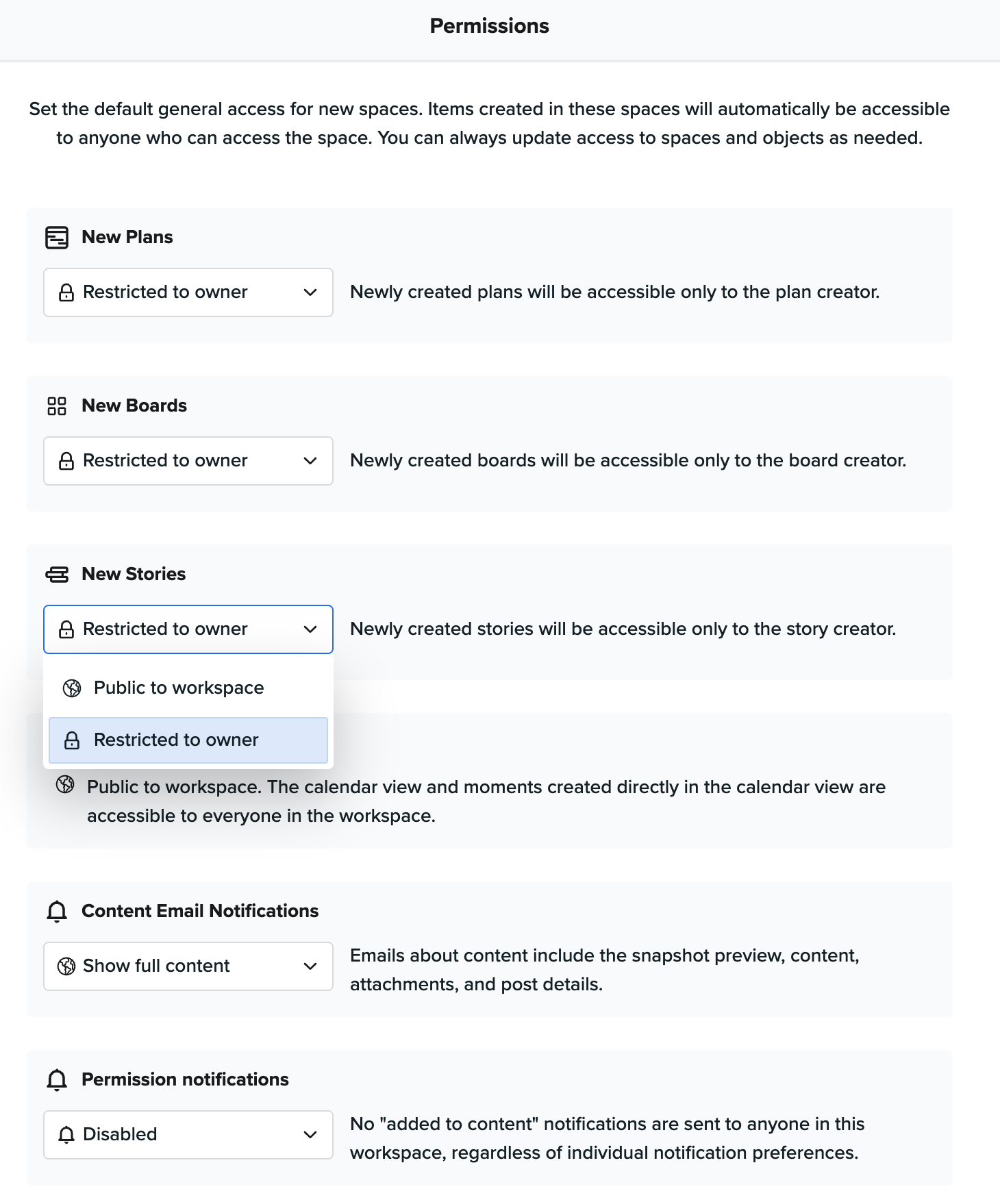
Workspace administrators set organization-wide access defaults from Configure Workspace → Permissions. These control how new items start out and how people are notified — anyone can still change an individual item's sharing afterward.
Default access for new spaces
For each kind of space, choose how newly created items start out:
- Restricted to owner — accessible only to the creator until they share it.
- Public to workspace — accessible to everyone in the workspace right away.
You can set this separately for New Plans, New Boards, and New Stories. Moments and content follow the access of the space they're created in.
Calendar
Moments created directly in the calendar view are always public to the workspace — the calendar view, and anything created in it, is accessible to everyone.
Content email notifications
Control how much detail Opal includes in emails about content:
- Show full content — emails include the snapshot preview, content, attachments, and post details.
- Restrict to name and link — emails show only the content name and a link to open it in Opal.
Permission notifications
- Enabled — people receive an email and in-app notification when they're added to work in this workspace.
- Disabled — no "added to content" notifications are sent to anyone in this workspace, regardless of individual notification preferences.
Quick reference
I want to… | Do this |
Let everyone in my workspace see an item | Open Share → set Privacy to Entire Workspace |
Share with just a few people | Open Share → set Specific people & spaces → add users or groups |
Keep an item private inside a shared space | Set the parent space to Don't Inherit Access, then add specific collaborators |
See who can access an item | Open Share and review the Collaborators list |
Get a link to an item | Open Share → Copy Link (recipients still need access) |
Change the default visibility of new items | Ask a workspace administrator to update workspace defaults |